Start with the job, not the bot
Every weekday morning, an operations coordinator reads three supplier notices and works out what changed. One collection window has moved an hour. One notice is unchanged. One supplier has not sent a current notice at all. The useful result is a short draft that says exactly that, ready for a person to check before anything happens.
That job is a good first task for a cloud bot. It repeats, it has clear inputs, and the safe result is a draft. This guide sets up one Grok Bot to do it on a schedule, on a cloud computer, while your own computer is closed.
You do not need programming experience. Every file in this guide is plain text, and every business, supplier and notice in it is invented. You can download the starter files described below and change them for your own work.
What a cloud Grok Bot is
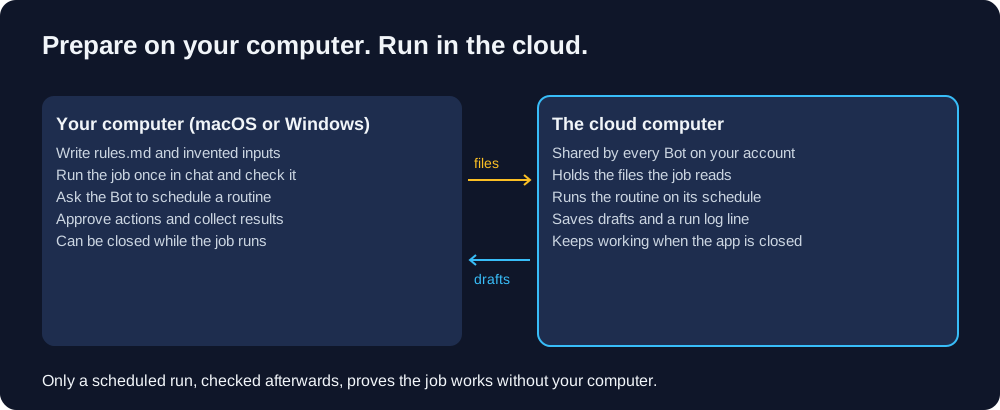
A Bot is an AI assistant that works on a computer in the cloud that belongs to your account. That computer keeps running when you close the app, your laptop or your phone, so scheduled work can carry on without you. The Grok Bot documentation describes these cloud computers as running in Cursor's cloud in the United States.
Three facts matter before you start:
- All your Bots share one cloud computer. They share its files, browser sessions and logins. A second Bot is not a security boundary, so do not give a "safe" Bot a job that needs separating from a "risky" one.
- The app is a window onto that computer. You use the desktop app (macOS, Windows or Linux) or the phone app (iOS or Android) to chat, approve actions and collect results. There is no standalone Grok Bot web app, though the documentation says you can also chat with your Bots in X Chat, including on x.com, as that rolls out.
- Work happens on the cloud computer by default. A Bot can run commands on your own computer only if you allow it in Settings, and by default it asks each time. Running in the cloud is what makes overnight jobs possible, and it also means any file the job needs must be on the cloud computer, not only on your desktop.
What Grok Bot is · The shared cloud computer
What you need, and what it costs
Grok Bot comes with a plan. There is no separate Grok Bot subscription.
On The X Subscription, which is the current offer for new customers, Grok Bot is included on Premium, Super and Ultra. Free and Plus do not include it. The vendor pricing page showed these prices on 6 November 2026, with a dollar sign and no currency code, excluding tax:
The page did not change to Australian dollars when viewed from Australia, and the subscription terms say the buyer carries currency and foreign exchange costs. Check the amount and currency at checkout before you buy.
How usage works on The X Subscription:
- One weekly pool. Grok Bot, Cursor and the Grok apps all draw on the same usage pool. It refreshes weekly.
- Top-ups when you run out. Extra use is paid from prepaid credit. Automatic top-up is off unless you turn it on, and a monthly limit is optional.
- A limit is a cap. Extra use stops when your prepaid credit runs out or your monthly limit is reached, so keep test jobs small.
- A trial may be offered. Some accounts see a free trial. It is a usage credit with a 7-day window, and one large job can use all of it.
Older Cursor plans (Cursor Pro, Pro+, Ultra and Teams) also include Grok Bot, with a weekly allowance and optional pay-as-you-go usage. On those plans, a run already in progress can finish past the monthly limit. Teams and Enterprise options exist; on Enterprise, an administrator has to switch Grok Bot on.
Step 1: Install the app and create a test Bot
- Download the Grok Bot desktop app from the official page linked in the Get started instructions, and sign in in your browser when the app asks. Sign-in uses a Cursor account.
- Your first Bot is called "Grok Bot". For this guide, create a separate test Bot with New Bot and give it a plain name such as "Ops test". The create dialog only asks for a name and a picture.
- Do not connect any apps or email to the test Bot. This job needs neither.
Before you add workplace material, check your organisation's rules about AI tools and where data may be stored. Use the invented starter files while you learn.
Step 2: Give the Bot its rules in a file
Personal Bots no longer have a description box. The documented way to set a Bot's behaviour is to tell it in chat, and the Bot decides for itself what to remember. That is convenient, but a rule that only lives in a chat can be lost.
So keep the rules in a file on the cloud computer, and tell the Bot to read that file at the start of every job. The starter rules.md file says, in part:
Ask the Bot to create its own folder and save the files there. Paste each file's text into the chat, or attach the files, and say exactly where to save them:
All Bots on your account share the /workspace folder, so give each Bot its own folder and tell it to stay inside it.
Getting started · Files and results
Step 3: Run the job once in chat
Before you schedule anything, ask the Bot to do the job once while you watch. The routines documentation recommends making a task reliable before automating it.
Check the draft against the notices, one row at a time. The collection window should move from the 09:00 to 11:00 slot to the 10:00 to 12:00 slot, and "confirm collection with the supplier" should still be there. Notice S03 should say that no current notice was supplied. If the draft gets any of that wrong, fix the rules or the inputs and try again before you schedule it.
Step 4: Schedule a draft-only routine
A routine is a saved job that runs on a schedule or when something happens, such as an email arriving. You create one by asking the Bot in chat.
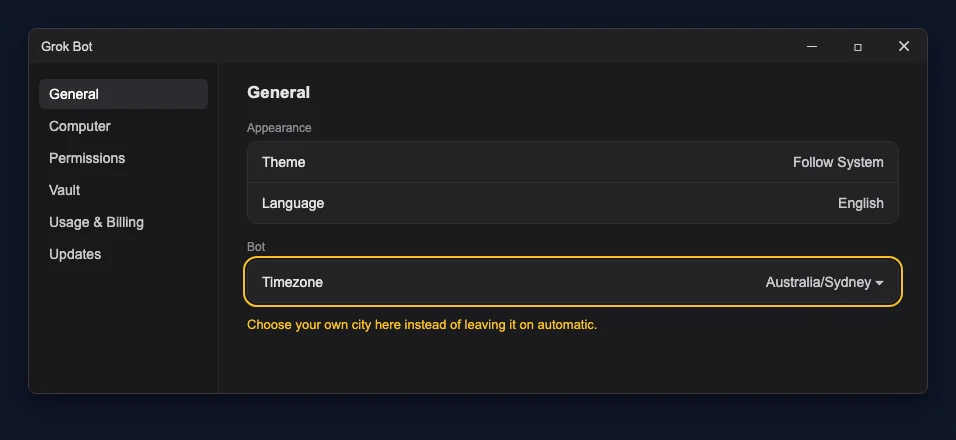
- Set your timezone first. Open Settings, stay on General, and find Timezone under the Bot heading. Choose your own city. If it is left on Auto-detect, it follows the computer you are using, so pick a zone when the routine should keep to one place's time.

- Ask for the routine in chat, using the same instruction as Step 3 plus a time, for example: "Set up a routine called supplier-notices that runs this job once, today at 8:50 pm Sydney time. Do not run it now."
- Check it saved. Open the Bot's details panel. Each routine shows its schedule and an on/off switch.
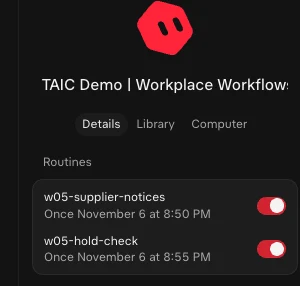
A new routine waits for its first scheduled time; it does not run when you create it. Each Bot can have up to 50 routines, schedules must be at least 5 minutes apart, and the app keeps only the 20 most recent run records for each routine, so copy any record you need into a file.
Skills, routines and automations
Step 5: Check it ran without your computer
Close the app before the routine is due, and check it stays closed: in the test for this guide, the app restarted itself after an automatic update, and again while its separate computer-use helper was still running. Afterwards, reopen it and check three things:
- The result in chat. The routine posts its result in the Bot's chat. On the phone, each routine's run history also shows recent runs as running, succeeded or failed.
- The output file. Ask the Bot to show
out/action-register.md, or download it from the chat. - Where it ran. The sample routine also saves
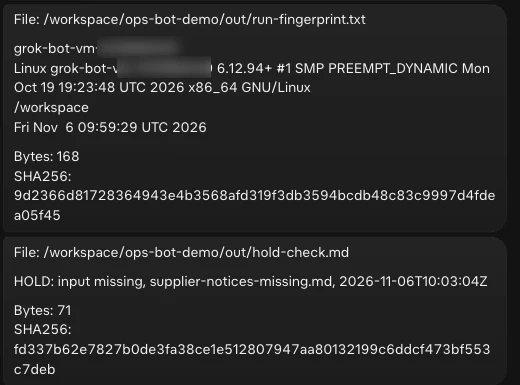
out/run-fingerprint.txt, with the cloud computer's own name and system details. If that file shows the cloud computer's name and the/workspacefolder rather than your own computer's name, the job ran in the cloud.
This is what happened in the test for this guide, on 6 November 2026. The routine was due at 8:50 pm Sydney time. The desktop app was quit at 8:28 pm and stayed closed until 9:02 pm. The Bot reported that the routine started at 8:58 pm, about 8 minutes late; it saved its files at 8:59 pm and posted a summary to the chat while the app was closed. Both test runs saved their files 8 to 10 minutes after their scheduled times, so do not build a job that depends on the exact minute.
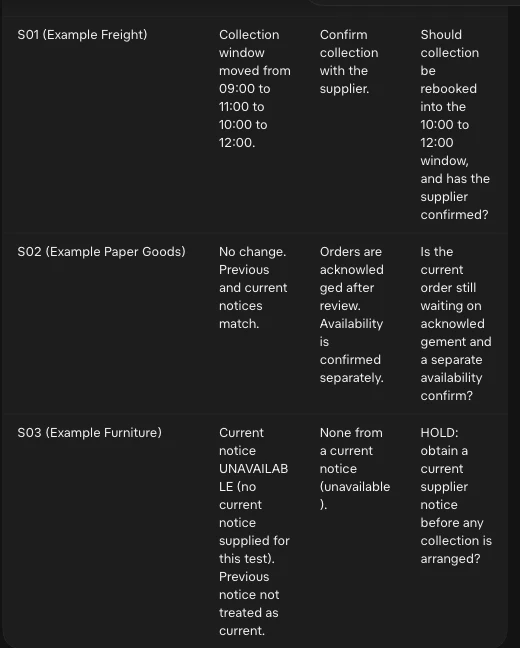
The draft matched the notices: the S01 window moved to 10:00 to 12:00 and kept "confirm collection with the supplier", S02 showed no change, and S03 was marked as unavailable rather than treated as current. The fingerprint file showed the cloud computer's own name and the /workspace folder, not the Mac the app runs on, and its time stamp matched the run.
Step 6: Check it stops instead of guessing
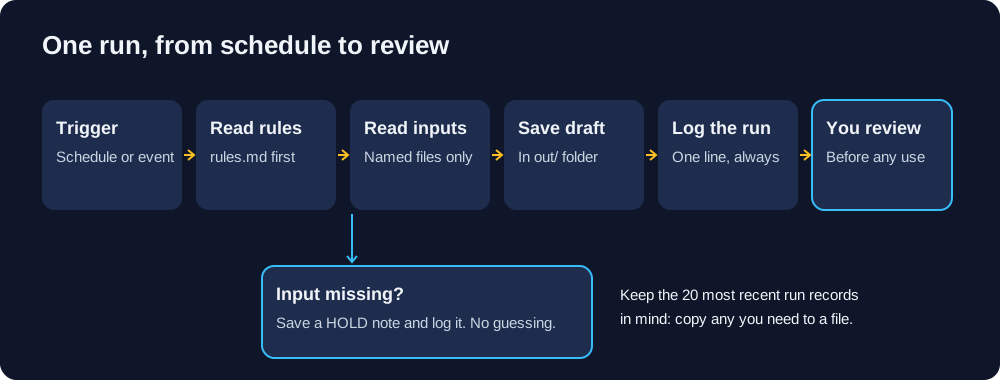
A good bot stops when something is missing. The starter files include a second routine, routine-spec-hold.md, that points at a file that does not exist. The expected result is a short note that says HOLD: input missing and names the missing file, with no invented notice and no action register.
In the test, the hold check was due at 8:55 pm and saved its note at 9:03 pm Sydney time, about 8 minutes late and 24 seconds after the app was reopened, so it shows the hold behaviour, not an app-closed run. It saved exactly one line, HOLD: input missing, supplier-notices-missing.md, with the run time. It did not create the missing file or use the other notices instead, and both runs added a line to the run log.
After both runs, the test routines were deleted and the Bot's routine list was empty.
Run this check whenever you change a Bot's rules. It is the quickest way to see whether the Bot will fill a gap with a guess.
When things go wrong
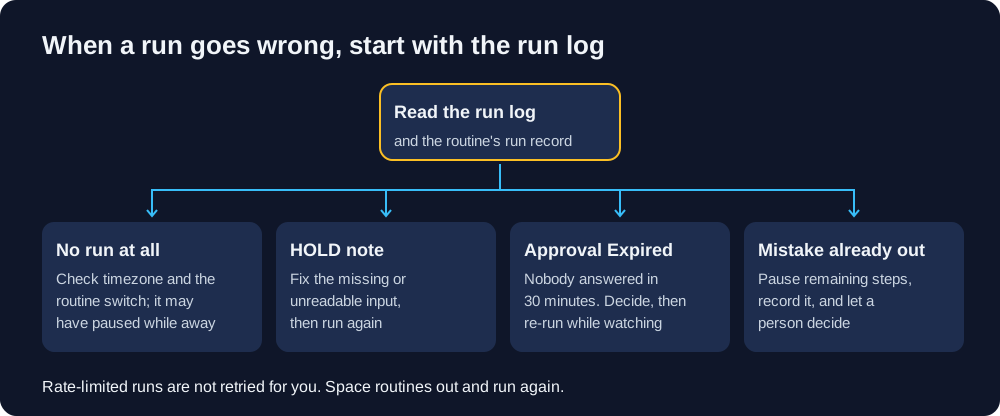
Grok Bot may also ask whether to keep routines running after a long period away, and pause them if nobody answers. When you come back, check each routine's switch. If a routine is switched on but has not run for 24 hours or more and shows no error, the vendor's troubleshooting page says to report a bug with the Bot name and routine details.
Approvals, security and privacy · Troubleshooting
Stay draft-first, and add permissions one at a time
Start with a Bot that only reads named files and writes drafts. Move up one step at a time, and only after the step below has run cleanly for long enough for you to trust it:
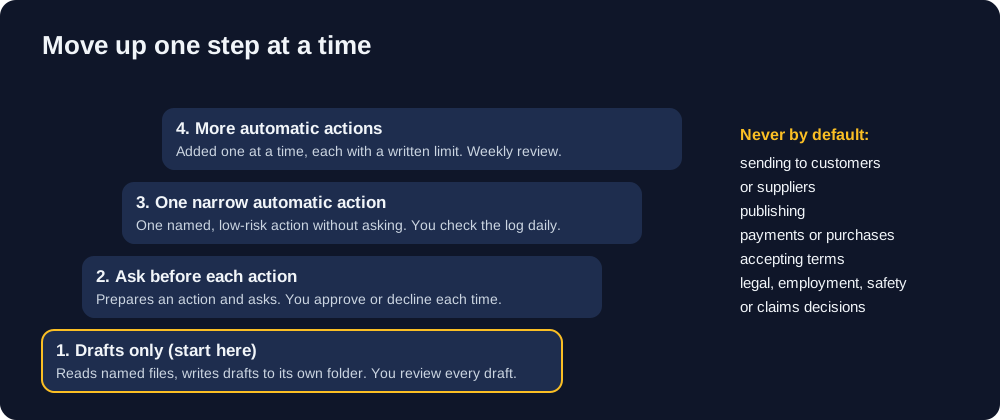
- Drafts only. The Bot writes to its own folder. You review every draft.
- Ask before each action. Add an Ask first rule for that action so the Bot always shows you an approval card. By default, Auto Review decides which actions need your OK.
- One narrow automatic action. The Bot does one named, low-risk action without asking. You check the run log daily.
- More automatic actions, added one at a time, each with its own written limit.
Never automate by default: sending to customers or suppliers, publishing, payments, purchases, accepting terms, or anything involving personal, legal, employment, safety or claims decisions. AI drafts and organises; it does not make clinical, entitlement, employment or safety decisions.
Two product details are worth knowing. Email a routine writes from the Bot's own email address waits as a draft until you press Send. Drafts for connected email and Slack are on by default but can be switched off for a Bot with Disable drafts for Bot, so leave them on, and do not connect a mailbox to a Bot that should not send. A payment card saved in Vault can pay at checkout without a separate approval each time, so do not save a card for a Bot that does not need one. Passwords and keys go only in the secure secret card or Vault, never in chat or files.
Some teams go further and build their own approval step outside Grok Bot, so a person approves one exact version of an item before anything is posted. That is something you build yourself, not a Grok Bot feature, and it is a destination, not a starting point.
Several Bots on one account
When one Bot works well, a second one can take a different job. Keep the arrangement simple:
- One Bot you talk to. Make one Bot the front door that hands work to the others.
- One owner per output. Each output file has one Bot that writes it and one person who reviews it.
- One folder per Bot. Every Bot shares the cloud computer and can see its files. Separate folders and written rules reduce collisions, but they do not stop one Bot reading another's files.
- A monitor that checks results, not just errors. A missed run can produce no error at all, so check that each expected file actually exists.
- Apps are account-wide. A connected app is available to every Bot on the account, so connect only what the jobs need.
Testing on your own computer, macOS and Windows
Use your own computer to prepare and check, not to run the job.
- Write
rules.md, the inputs and the routine instruction in any text editor, using invented data. - In the desktop app, run the job once in chat and check the draft (Step 3).
- Schedule the routine, set the timezone, and let it run with the app closed (Steps 4 and 5).
The steps are the same on Windows. The desktop app is documented for macOS, Windows and Linux, but this guide was only tested on macOS. The Windows picture below is recreated in code to show where the timezone setting sits; it is not a screenshot.
What testing on your own computer cannot prove: that the cloud computer can reach the inputs, that the schedule fires, that approvals arrive in time, or that a run finishes unattended. Only a scheduled run, checked afterwards, proves those.
Starter files
The starter files are invented examples with no accounts, addresses or keys:
rules.mdandabout-the-business.md: the Bot's rules and contextin/supplier-notices.md: three invented supplier noticesroutine-spec.mdandroutine-spec-hold.md: the sample routine and the hold checkworkspace-layout.md,run-log-template.mdandoutput-schema.json: folders, logging and output fieldspermission-ladder.mdandcost-worksheet.md: moving beyond drafts, and measuring cost
Download the starter files (ZIP). You can also read rules.md and the sample routine in your browser.
Available now, and coming on 18 November
Available now: this guide and its starter files. Together they cover one Bot, one timed routine and one hold check, all drafts only.
Planned for 18 November 2026: a separate three-bot starter kit for operations, marketing and support, with a monitor. It is not part of this guide, and nothing here should be read as that kit.
How this guide was checked
Product facts were checked on 6 November 2026 against the Grok Bot documentation, the vendor pricing pages and Cursor's plans and billing help. Where vendor pages disagreed, this guide follows the detailed documentation and pricing tables. The sample routine was run on a dedicated test Bot with the desktop app quit, and the hold check ran just after the app was reopened; the results above are from those runs. Prices, plan names and limits change, so check the linked pages before you rely on them.
General information only, not legal, financial or professional advice.
Changelog
- Version 1.0.0, 6 November 2026: First version: one cloud Bot, rules in a file, a draft-only timed routine tested with the desktop app closed, and a hold check. Plans and limits checked against vendor pages on 6 November 2026.
TheAICommand. Intelligence, At Your Command.