Before you start
This guide is for people who use Claude for everyday work: meeting notes, emails, reports, spreadsheets, policies. You do not need any technical background.
You will:
- Install the Claude app and sign in.
- Check two privacy settings before you add any work material.
- Try three real tasks, shown step by step with real screenshots.
- Set up a Project so you stop repeating yourself.
- Optionally, try the Code tab for jobs that involve a folder of files.
Every screenshot in this guide is a real capture of Claude, taken on 4 November 2026 unless it says otherwise. The examples use made-up names and data, and personal details on screen have been blurred. Your screen may look slightly different, because Anthropic updates Claude often.
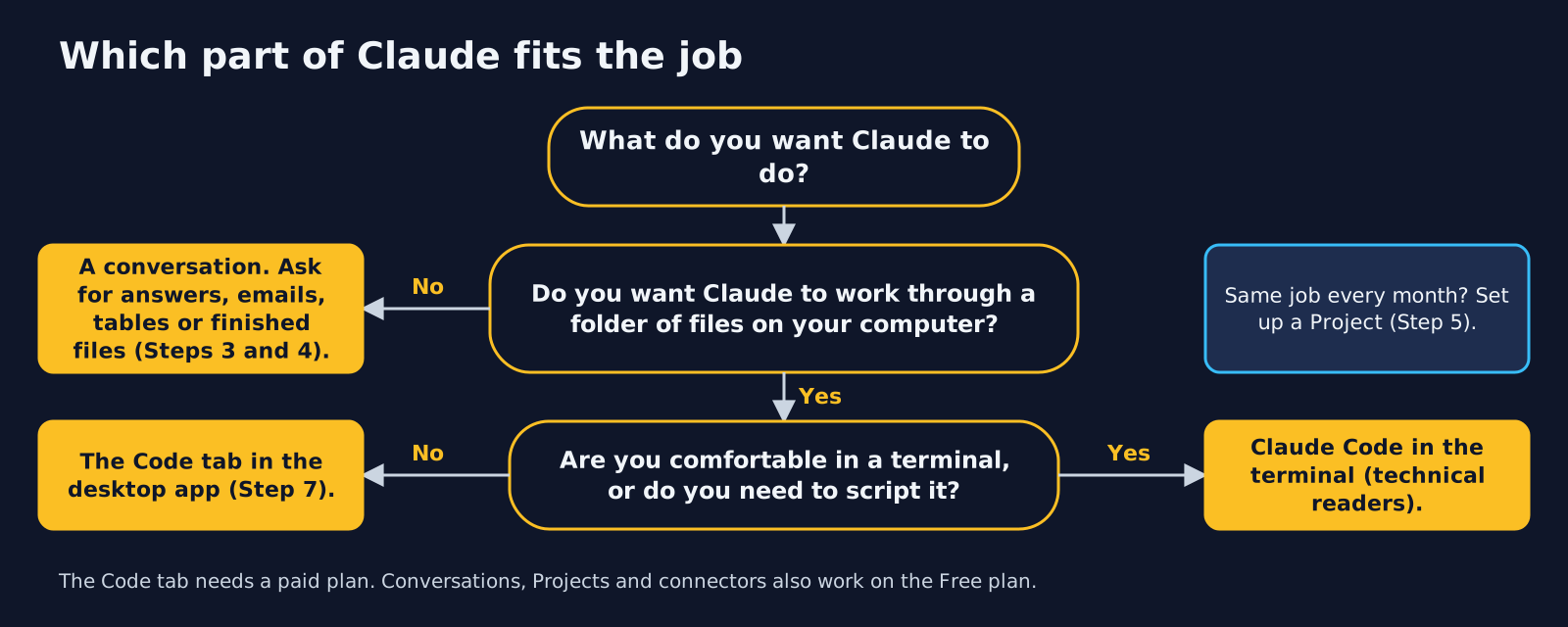
Step 1: Install Claude and sign in
You can use Claude in a web browser at claude.ai, or install the desktop app. The desktop app is free to install on every plan, and you need it if you want Claude to work on folders on your computer (Step 7).
- Go to claude.com/download and download the version for your computer. It works on a Mac with macOS 13 or later, and on Windows 10 or later.
- Open the downloaded file and install it like any other app.
- Open Claude and sign in with your Claude account (or create one).
- The app updates itself when it starts. To check by hand on a Mac, choose Claude > Check for Updates...; on Windows, choose Help > Check for Updates...
Step 2: Check two settings before you add any work
Do this once, before you paste in anything from work.
- Training on your chats. Open Settings > Privacy. The switch called Help Improve our AI models decides whether your chats can be used to improve Claude. Set it the way you want. This applies to personal plans (Free, Pro, Max and Ultra). On Team and Enterprise accounts, Anthropic does not use your chats to train its models by default.
- Memory. Claude remembers things from your past chats and uses them later. On personal plans memory is on by default. See what it remembers in Settings > Your Claude, under Your memory.
Why memory matters: when this guide's examples were run, Claude signed an email with the account holder's first name and added notes based on their saved preferences, without being asked. That is useful, but it means Claude can bring personal or work details into a new chat. Read every result before you send it anywhere.
Also check your organisation's rules. Many workplaces say what you may and may not put into an AI tool. Use made-up or de-identified details while you learn.
Step 3: Your first task: turn meeting notes into actions
This is the kind of job Claude does well: rough notes in, clear actions and a ready-to-send email out.
1. Say what you want, then paste your notes. Put the request first (a table of actions, an email), then the material.
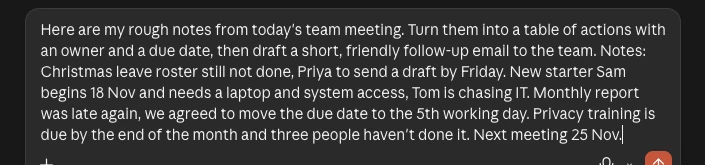
You can copy this request and swap in your own notes:
2. Press Enter and read the result. In this example Claude returned a table of five actions and worked out real dates from words like "by Friday" and "the 5th working day".
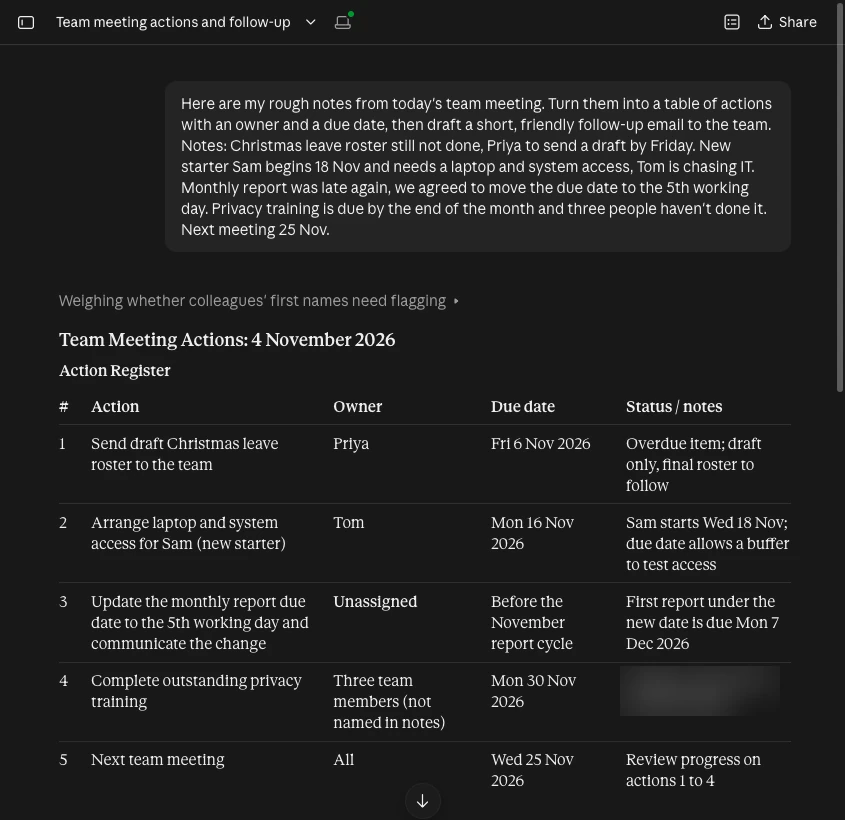
3. Check it before you use it. Claude is good, not perfect. In this run it:
- turned "by Friday" into Friday 6 November, and "the 5th working day" of December into Monday 7 December. Both were right, but dates are exactly the kind of detail to check.
- marked one action Unassigned, because the notes did not say who owned it. That is a prompt for you to decide, not a mistake.
4. Use the email. Below the table, Claude drafted the follow-up email.
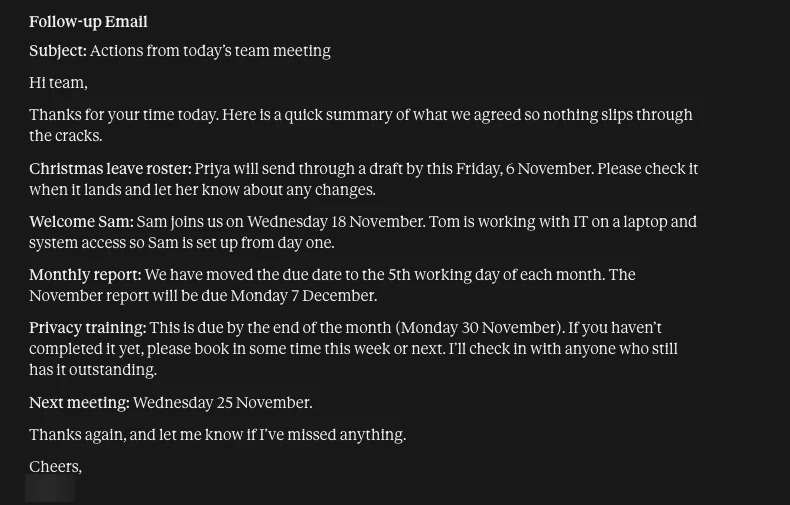
If you want changes, reply in plain words: "Make it shorter", "Add that the roster is only a draft", "Use a more formal tone". You do not need to start again.
Step 4: Hand Claude a bigger job: build a spreadsheet
Claude can also take on longer jobs and give you back a finished file: a spreadsheet, a document or a slide deck. You ask the same way, in the same conversation, with no separate mode to choose. (This used to be a separate mode called Cowork. On Pro, Max and Ultra plans, and on Team and Enterprise where your organisation has turned it on, it is now part of every conversation.)
1. Ask for the file you want. This example gives Claude a team's training record and asks for a spreadsheet of who is overdue.
2. Let it work. Claude shows what it is doing, for example "Running a command". A job like this can take a minute or two. You can stop it at any time with the square button in the message box.
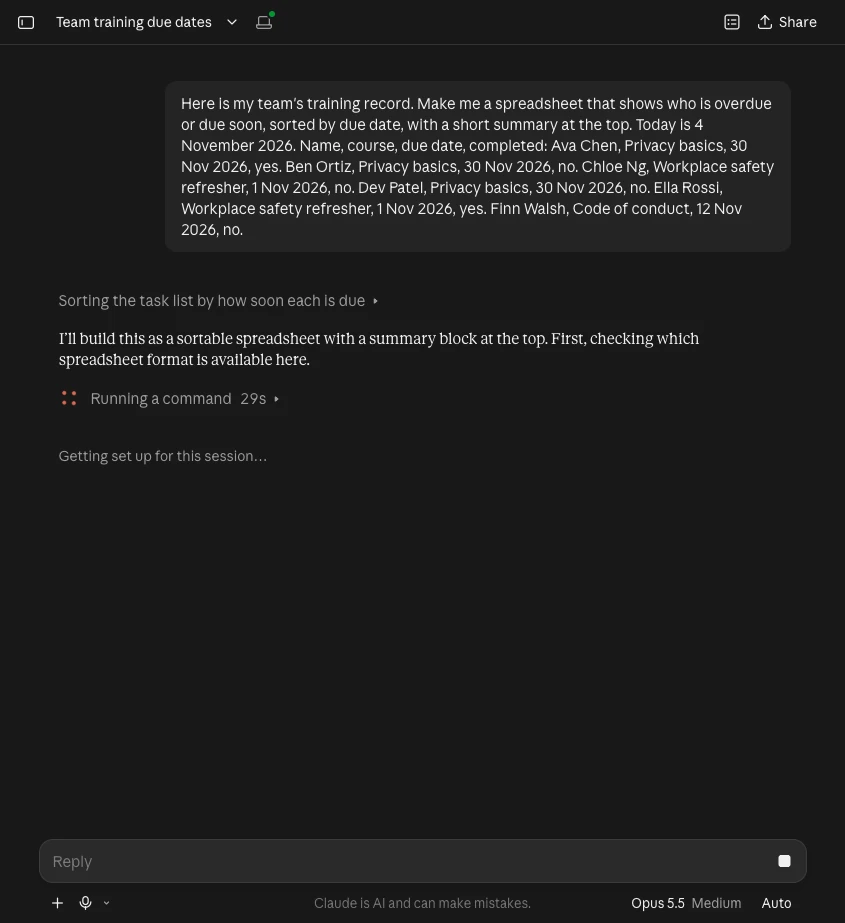
3. Open the file. When it finishes, the file opens beside the conversation. You can download it or keep asking for changes.
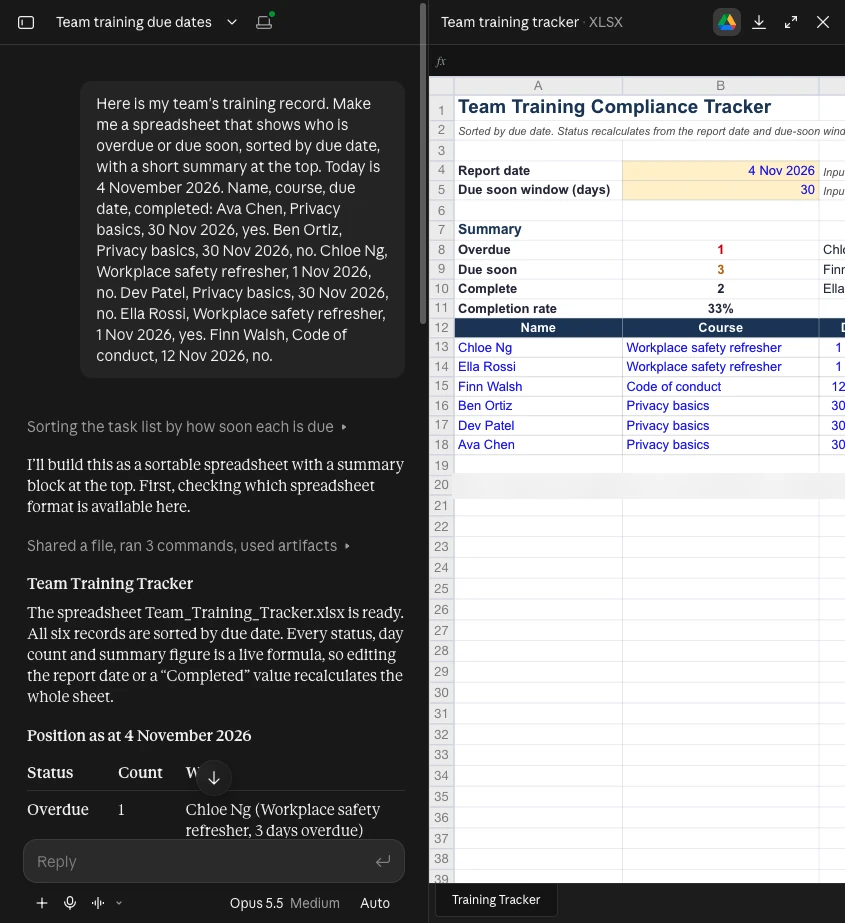
In this run Claude sorted the six people by due date, found one person 3 days overdue and three due soon, and made every count a live formula, so changing a date updates the summary.
Check it: compare the counts with your original list, and look for anything Claude added. Here it added a "Source" note naming the person who supplied the data.
Longer jobs keep running even if you close your laptop. Jobs that use files on your computer need the desktop app open. Handing off and scheduling longer jobs needs a paid plan.
Step 5: Stop repeating yourself with a Project
If you do the same kind of job every week or month, make a Project. A Project keeps your instructions and reference files in one place, so every chat inside it already knows how you like things done.
- Click Projects in the sidebar, then create a new project.
- Give it a name and say what you are trying to achieve.
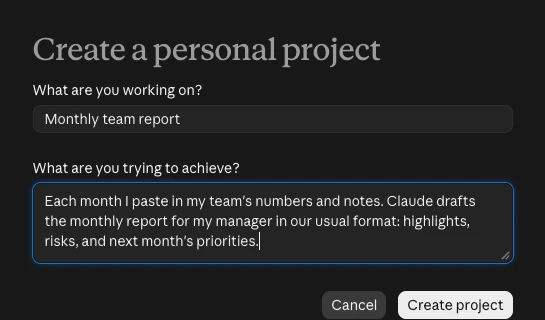
- Add instructions, written as rules. For a monthly report, something like:
- Add reference files you are allowed to share, such as last month's report as a model (up to 30 MB a file).
- Each month, open the Project, start a chat, and paste in that month's numbers and notes.
Free plans can have up to five Projects.
Step 6: The two buttons worth knowing
The + button sits in the message box. It is where you add files, use skills (saved step-by-step routines), connect other apps such as your calendar or drive (Connectors), and turn on Research for a deeper web search.
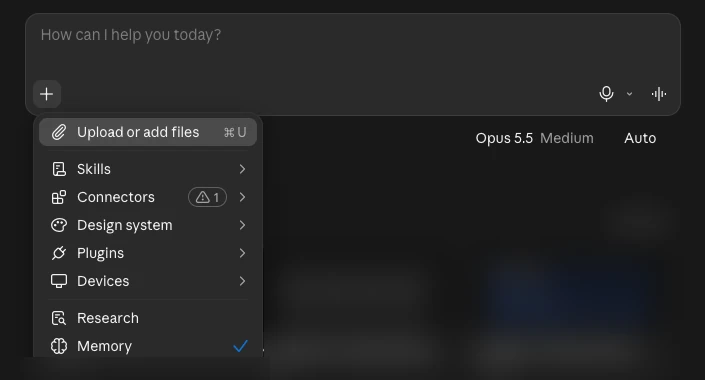
The permission setting sits under the message box, on the right. It controls how much Claude checks with you during longer jobs.
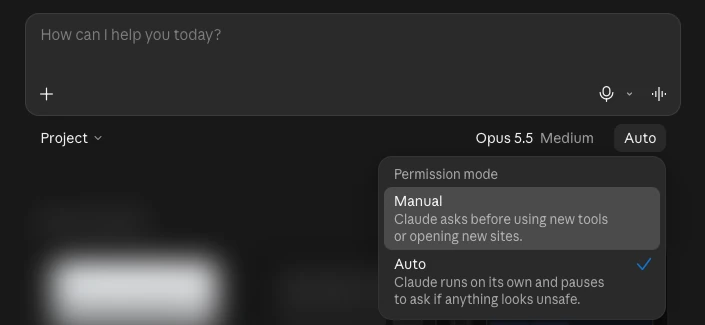
- Manual: Claude asks before using new tools or opening new sites. Choose this while you are learning, and for anything with real consequences.
- Auto: Claude works on its own and pauses to ask if anything looks unsafe. This is the default on Pro, Max, Ultra and Team.
Connect apps one at a time, and only ones your organisation allows. Each connection lets Claude read (and sometimes change) things in that app.
Step 7 (optional): The Code tab, for jobs on a folder of files
Despite its name, you do not need to write code to use the Code tab. It is the part of the desktop app where Claude works directly on a folder on your computer: reading the files in it, creating new ones, and showing you exactly what it did. It needs a paid plan and the desktop app.
When it helps: you have a folder of similar documents and want something done across all of them: compare them, build a template from them, tidy or rename them, or pull figures into one table.
A real example. A small business has a folder with three customer quotes. The request:
1. Start the session. Open the desktop app and click the Code tab. Under the message box, choose Local (this computer), then choose the folder with Open folder..., and type the request. Claude lists the steps it plans and works through them.
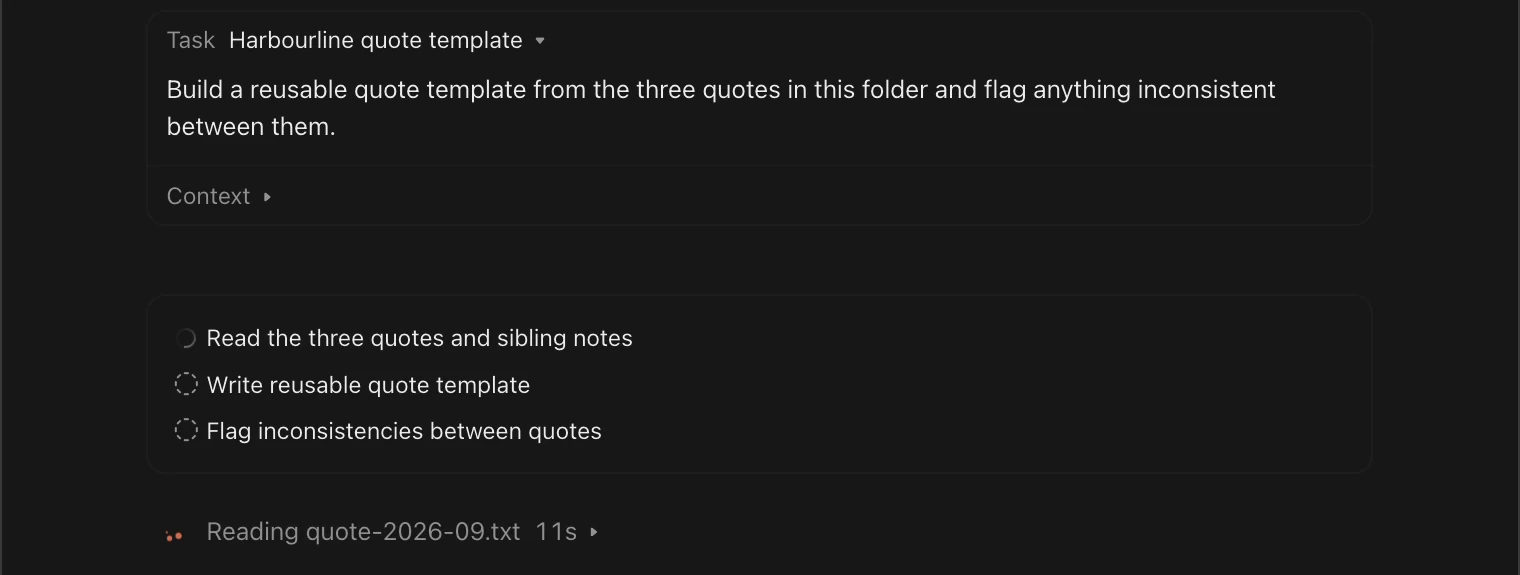
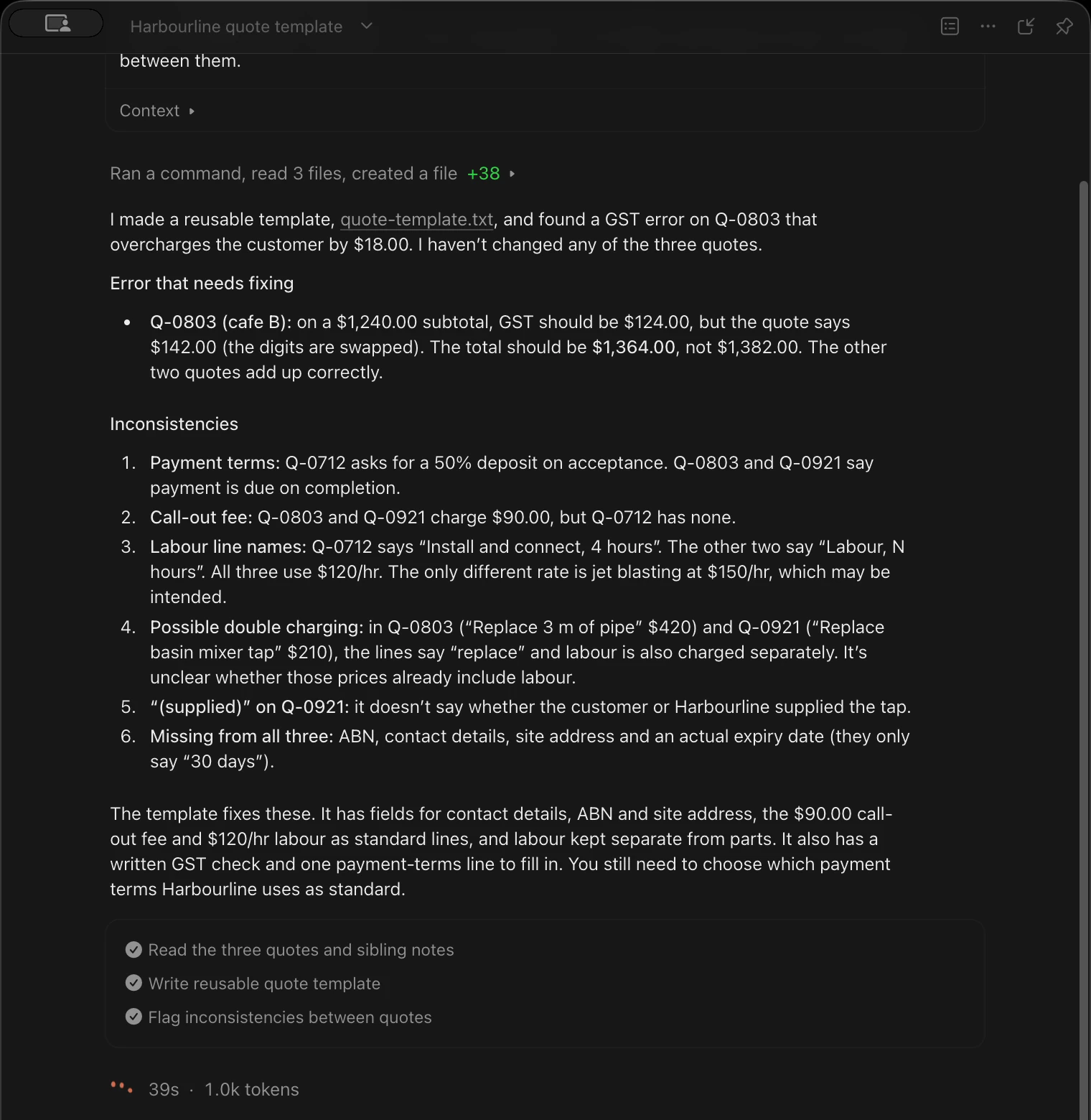
2. Read what it found. Claude created a new template file, left the three original quotes unchanged, and flagged a GST mistake that overcharged a customer by $18, plus six inconsistencies between the quotes.
3. Choose how much it asks first. The word at the bottom right of the Code tab is the permission mode. In this session it was Accept edits.

Click the mode word to change it. Start on Manual.
Give the folder some house rules. Make a plain text file called CLAUDE.md in the folder, and Claude reads it at the start of every session there. Write it like a note to a new team member:
Keep it short; Anthropic suggests under about 200 lines. You can also ask Claude in the Code tab to create it for you.
What it costs in Australia
These are Anthropic's own Australian prices, shown on claude.com/pricing to a visitor in Australia on 4 November 2026. They include 10% GST. The price at checkout is the one that counts.
How limits work, simply: everything you do in Claude (chats, bigger jobs and the Code tab) comes out of one allowance. Most plans have a limit that resets five hours after your first message, plus a weekly limit. Verified Ultra accounts have only the weekly limit. Anthropic does not publish exact message counts. To see where you are, open Settings > Usage.
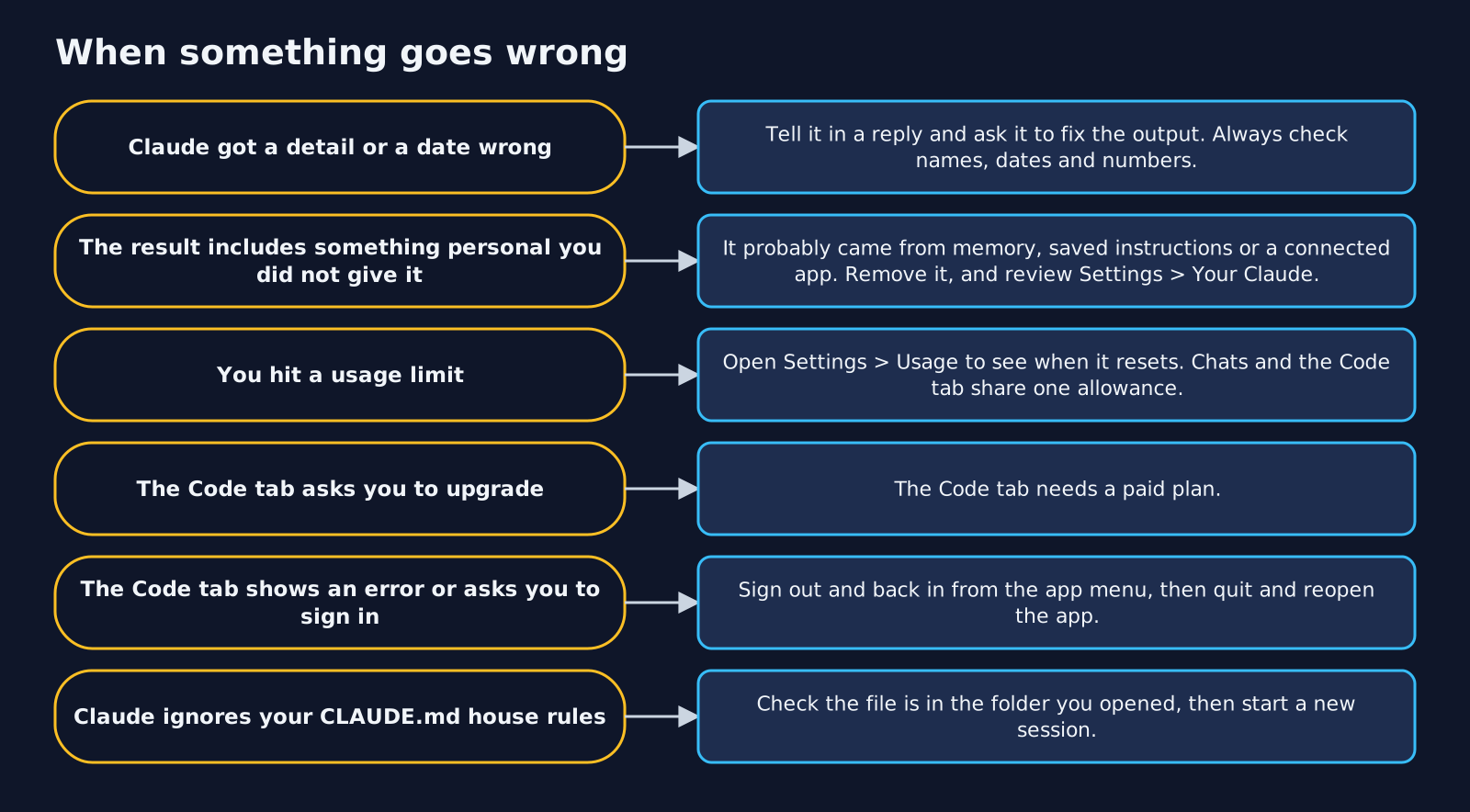
When something goes wrong
Words you will see
For technical readers: Claude Code in the terminal
Most people never need this. Claude Code also runs as a terminal program, which is useful for scripting. It needs a paid plan or an Anthropic Console account with API credits.
macOS, Linux or WSL:
Windows PowerShell:
Then check the install and start it in a folder:
If the command is not found, open a new terminal window. If it is still missing on a Mac, add it to your path:
In the terminal version, an ANTHROPIC_API_KEY set on your computer can replace your subscription and be charged at API rates. Remove it if you did not mean to use one. Full instructions: Anthropic's setup page and troubleshooting page.
How this guide was checked
- Examples: the meeting notes, spreadsheet and Project examples were run in claude.ai on 4 November 2026 and captured as they happened. The Code tab example is from a recorded desktop session on a Mac on 31 October 2026.
- Facts: checked on 4 November 2026 against Anthropic's documentation and Help Centre: desktop quickstart, Install Claude Desktop, Claude Cowork and chat are one Claude, Projects, memory, privacy settings, usage limits, permission modes and CLAUDE.md.
- Not tested: Windows. Those steps follow Anthropic's documentation.
This guide is maintained: when Anthropic changes something, it gets a new version and the dates at the top move. Related reading: Gold Standard Claude Workspace Setup and What Your AI Workspace Actually Remembers.
Changelog
- Version 1.0.0, 4 November 2026: First release. Every example was run for real and captured from the live product; prices are Anthropic's Australian prices; facts checked against Anthropic's documentation and Help Centre on 4 November 2026.
TheAICommand. Intelligence, At Your Command.