Start with a task you recognise
A meeting has finished. The notes contain three actions, one missing deadline and a problem that is already resolved. The useful result is a checked action list, not a longer version of the notes.
This guide starts with that job, then moves to a customer reply and a small webpage. No programming experience is needed for the first two examples. The webpage example explains the few technical terms it uses.
Use the interactive walkthrough alongside the instructions. It recreates the signed-in ChatGPT Work web interface in code. Its responses are prepared examples, and its buttons do not contact an AI service. You can copy the prompts into the real product to try them yourself.
The recreation uses synthetic projects and conversations. It is not a screenshot, a login page or an OpenAI product. Menus may move as the product changes.
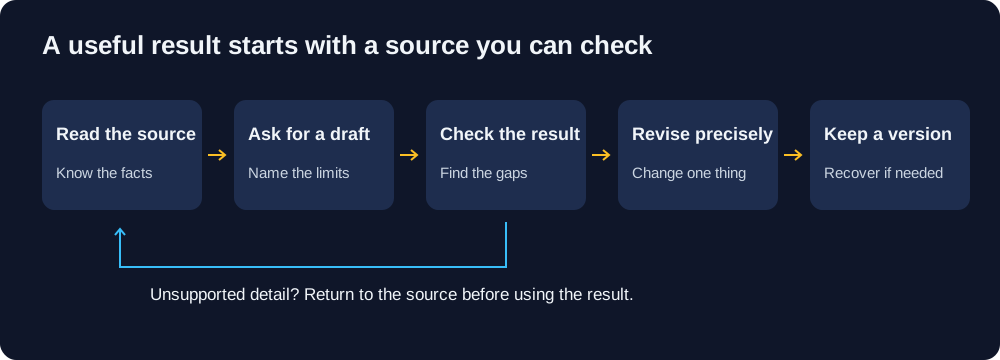
Step 1: Open the right workspace
Open ChatGPT in a browser and sign in through the official site. Choose Work above the message box for a task with a finished result. Chat suits questions and shorter conversations. Start a new chat for a one-off job, or choose a project for continuing work. Official web instructions.
Work in the browser needs a Plus, Pro or Business plan. On the Free and Go plans, OpenAI lists limited Work access in the desktop app only. Enterprise and Edu access depends on your administrator. Plans and pricing.
A project keeps related chats, files and instructions together. For example, a project named "Weekly team updates" could contain meeting notes and the preferred report format. Uploading a file to a web project does not give it general access to your computer's folders. Projects and chats.
On the inspected web interface, the message box sits above Choose project, Files and Plugins. The left sidebar contains projects and recent chats. A model selector sits inside the message box. A model is the system that generates the response; the selected model can affect capability and usage. Use the available default for these small exercises and record its displayed name when comparing results.
Before adding workplace material, check the account, workspace and your organisation's rules. Use the supplied made-up material while learning. A convincing output is not evidence that it is safe or correct. AI drafts and organises; it does not make clinical, entitlement, employment or safety decisions.
Step 2: Turn meeting notes into actions
Download the meeting notes. The fictional meeting took place on 4 November 2026. Alex owns the welcome pack, Morgan owns a daily inbox check, and the survey has neither an owner nor a deadline.
Paste the following request, then paste the notes underneath it. A prompt is simply the instruction you give the tool.
Review the result against the source, one row at a time:
- Alex's welcome pack is due on 6 November.
- Morgan's inbox check starts on 5 November and repeats daily. It is not a one-off task due on 5 November.
- The survey's owner and deadline remain unconfirmed.
- The resolved printer issue does not become a new action.
Ask for one precise correction instead of starting over:
Compare the revised update with the table. The unassigned survey now appears first and the printer is recorded as completed. The daily inbox frequency remains explicit. Keep the original notes beside the result until a person has checked both.
Step 3: Draft a customer reply from an FAQ
Download the customer enquiry and service FAQ. An FAQ is a short list of frequently asked questions and approved answers.
Harbour Repairs is a fictional business. Its assessment costs $45, with a repair quote provided afterwards. Saturday appointments require staff confirmation. The customer asks whether a desk lamp can be repaired on Saturday for $45 and collected the same day.
Check the draft for three tempting but unsupported promises: a $45 repair, a confirmed Saturday booking, and guaranteed same-day completion. The source supports none of them.
Use this follow-up to make the draft warmer without changing its commitments:
A staff member still confirms availability and sends the approved reply. Drafting from an FAQ does not authorise a booking, a refund or a price commitment.
Step 4: Build and maintain a small webpage
Download the service brief. This example turns the same Harbour Repairs facts into a single page that opens in a browser.
HTML describes a webpage's content and structure. CSS controls its appearance. A single-file page keeps those pieces together in one .html file. It does not need to be published online for you to inspect it.
Save the first result as harbour-repairs-v1.html. Open the file in a browser and check its visible text against the brief. Review the actual file, not just the assistant's description of it. File preview behaviour differs by product surface. Working with generated files.
Now practise a small maintenance change:
Open both versions. Confirm that Monday to Thursday remain 9 am to 5 pm and Friday now closes at 3 pm. Recheck the fee and Saturday qualification. A diff is a comparison showing what changed between two versions; it is useful even when the change is only one line.
Recovery is part of the exercise. If a later edit gives the wrong Friday hours, stop using that copy and restore the checked second version. Keep the first version too, so the original request remains traceable. A file that renders successfully can still contain a wrong fact.
Open the original page and the revised page.
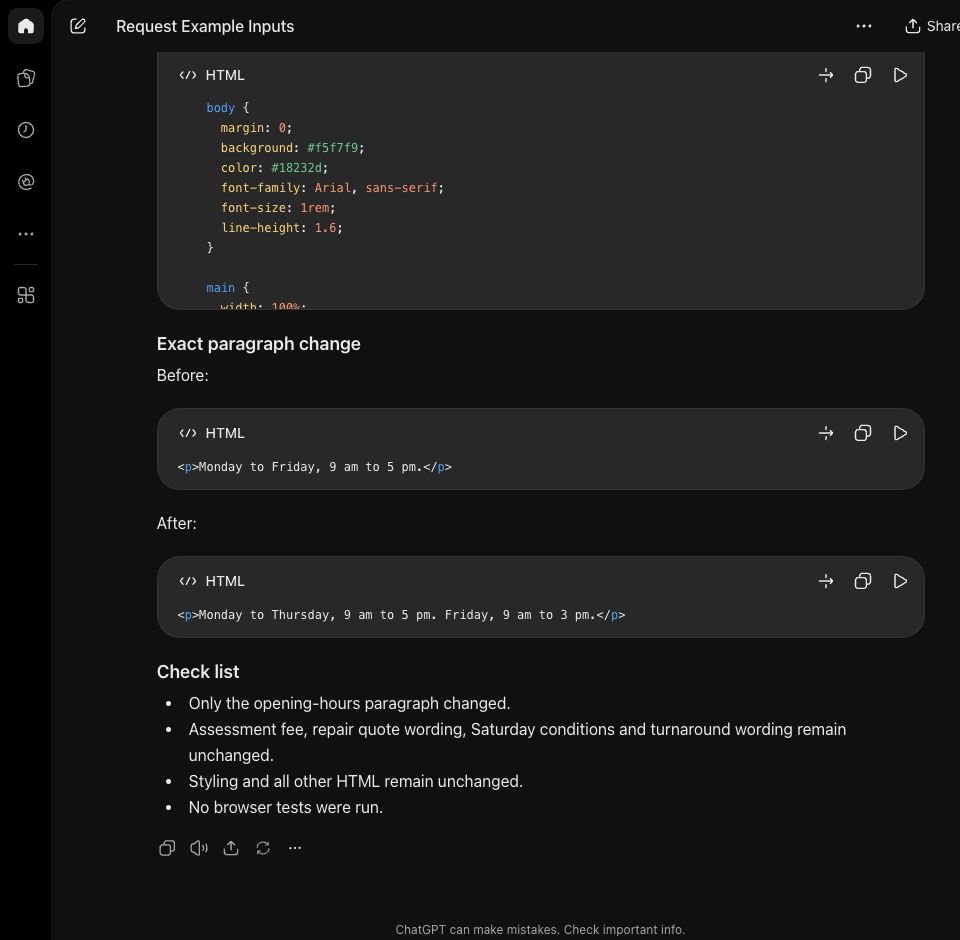
The screenshot records the model's response at generation time. Its statement that browser tests were not run applies to that response. Subsequent file and browser checks are recorded separately.
Step 5: Save instructions you reuse
When a task repeats, put its stable rules in project instructions rather than rewriting them in every message. For a weekly update project, start with this small set:
Project instructions apply across the project's chats. Start a fresh chat for each distinct deliverable, while keeping the shared sources in the project. Project instructions and sources.
For a Codex project that works on local files, AGENTS.md is a plain text instructions file saved in the project folder. The .md ending means Markdown, a readable text format with headings and lists. Codex reads applicable instructions before working. Ask it to summarise the instructions it loaded before relying on them. Official AGENTS.md guidance.
Step 6: Add tools only when the task needs them
A skill packages a repeatable set of instructions and supporting material. A plugin is an installable package that can connect ChatGPT to another service, such as a document store, and can also include skills. Use a skill when you need reusable instructions for one task. Use a plugin when the task also needs a connected service or other tools. Skills and plugins.
These exercises use supplied text and files. They do not require a connected email account or permission to send messages. If a later task needs a plugin, check which service it connects to and what it can do there before you install it.
For local desktop work, permissions control how ChatGPT edits files, runs commands and uses the internet. OpenAI recommends Ask for approval as the starting point for most work. The available modes depend on your app version, your computer's setup and your organisation's requirements. A broader permission mode gives ChatGPT more access; it does not check the work for you. Permissions.
Step 7: Design a scheduled task before enabling it
A scheduled task repeats an instruction at a chosen time. A suitable first example is a draft weekly update from an approved action list.
Use this as a planning exercise. It deliberately does not create a schedule:
Before enabling a real schedule, test the prompt in a regular chat, then check its source access, time zone, destination and stop conditions. Review the first few runs. Open Scheduled to inspect task status and run history. Local project tasks need the computer on and the desktop app running; web tasks use uploaded context and connected tools rather than direct folder access. Scheduled tasks must be enabled for your workspace, and some task types depend on your plan. Scheduled tasks.
Plans, prices and usage
OpenAI's pricing page showed these Australian prices when viewed from Australia on 5 November 2026. The page does not say whether GST is included, so confirm the total at checkout.
ChatGPT Work and Codex share usage. Limits depend on the model and task; the usage dashboard is the authority for remaining allowance and reset times. An API key uses separate usage-based billing. These exercises do not require an API key. Official pricing and limits and plans and pricing.
Desktop companion: macOS and Windows
The main walkthrough above is a web workflow. The former Codex app documentation now leads to OpenAI's ChatGPT desktop documentation, which describes choosing ChatGPT or Codex. Product labels in older tutorials may therefore differ from the installed app. OpenAI also offers a Linux download; this guide covers macOS and Windows only. Desktop app documentation.
PowerShell is Windows' command interface. WSL2 is Windows Subsystem for Linux 2, an optional environment for Linux tools. Beginners using the browser exercises do not need it. Avoid treating a Mac screenshot as proof of a Windows menu. Windows app guidance.
For desktop file work, use a dedicated practice folder containing only the sample files and a preserved original. Ask for the intended changes before edits, then review the resulting files. Keep the permission boundary narrow enough for the exercise.
Optional appendix: Codex in a terminal
CLI means command-line interface. A terminal is a window where you type commands. This route is optional and is documentation-only here.
- Follow the installation option for your operating system in the official Codex CLI guide. Do not paste Mac installer commands into Windows PowerShell.
- Open the dedicated practice folder in your terminal. The command
cdchanges the current folder; replace the example path with your own. - Run
codexand follow the available sign-in flow. - Start with a read-only request:
Explain the files in this folder without changing anything. - Use
/permissionsto inspect what the session can do. Use/reviewto request a review after a deliberate edit. Its review options compare changes tracked by Git, a tool that records file versions, so it is most useful in a folder set up with Git.
On macOS, a folder command can look like this:
In Windows PowerShell, the equivalent can look like this:
These commands assume the practice folder already exists and Codex is installed. The CLI works in the terminal with files in the folder where you start it. To see a changed file, open it yourself in a browser or editor. Keep a previous version before requesting changes. Installation and the commands above were not run for this guide.
When something does not work
Evidence and maintenance
The interface reference was observed in the signed-in browser on 4 November 2026. Its private project names and chat history are not reproduced in the public demo. The interactive interface is recreated in code and carries that label. The maintenance screenshot above is a genuine browser capture with a separate caption.
The three sample tasks were run in one shared browser chat on 4 November 2026, with GPT-6.1 Sol Light shown in the model selector. The recorded results preserve the missing survey information, distinguish assessment from repair cost, and change only the opening-hours paragraph. A local check then introduced an incorrect hours value in a disposable copy and restored the saved second version byte for byte. These are separate checks, not independent benchmark trials. The run record and technical checks are maintained separately from documentation checks. The saved second webpage was also opened and visually inspected at desktop size and at a 390 by 844 pixel mobile viewport. Its checked hours and service qualifications were visible, with no horizontal page overflow at the mobile size. A prepared demonstration response is not a fresh AI result, and one successful example is not a reliability benchmark. The desktop, Windows, CLI and scheduled-task paths are documentation-only unless the test record explicitly states otherwise.
Review source links weekly and repeat the examples monthly or after a material interface change. The desktop app normally checks for updates automatically; managed workplaces can control updates centrally. Check the installed version and workplace policy before following changed instructions. App update guidance.
Keep three dates separate: when sources were checked, when a person reviewed the guide, and when its substance changed. Report an error through TheAICommand's editorial standards.
Changelog
- Version 1.0.0, 5 November 2026: First version: web-first teaching guide, three synthetic examples and a code-built interface recreation. Desktop and CLI paths are separately labelled. Sources rechecked and OpenAI's Australian prices added on 5 November 2026.
TheAICommand. Intelligence, At Your Command.